

When Should You Upgrade Your Laptop? 7 Clear Signs

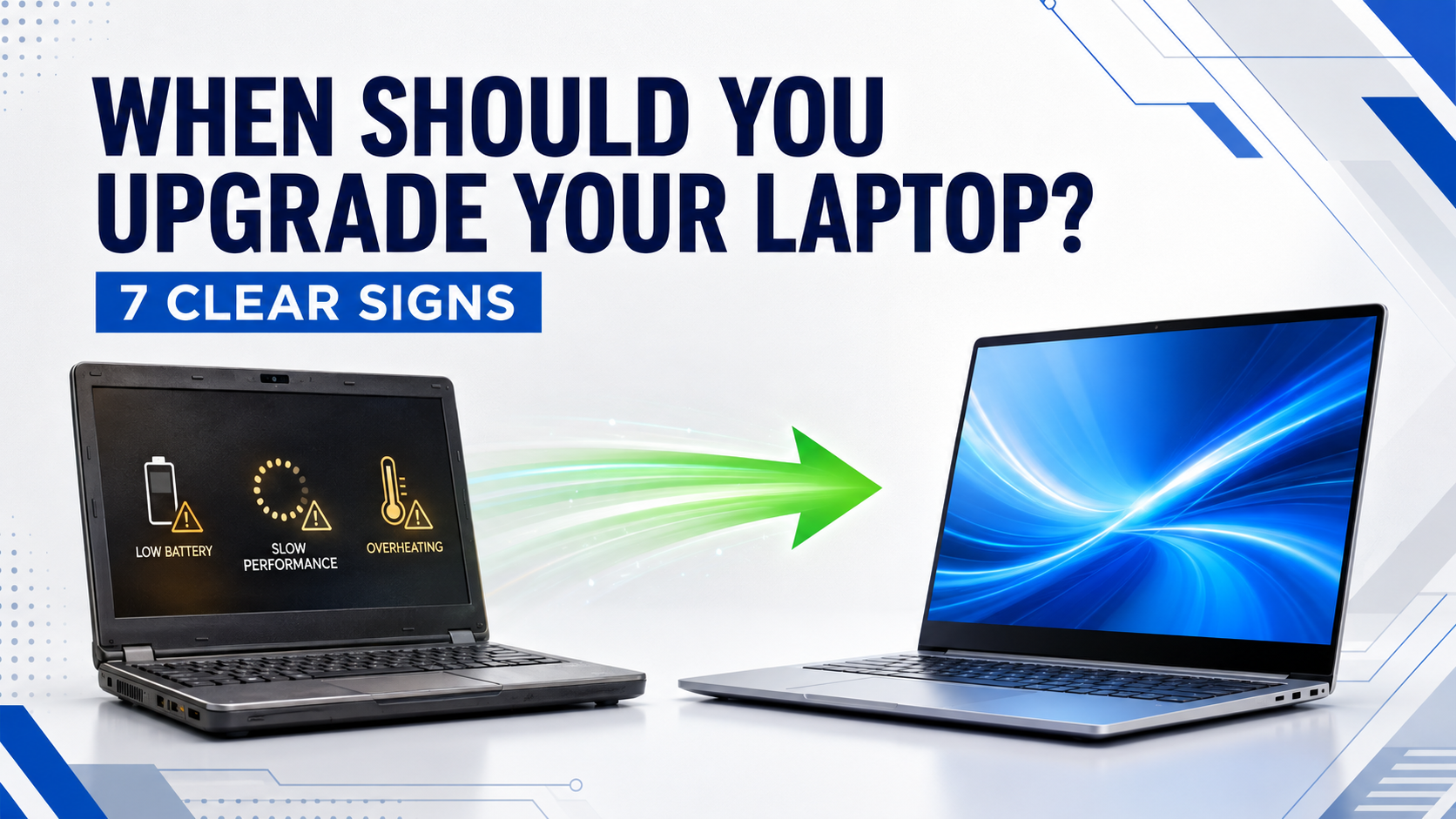
Usman restarts before every meeting, carries his charger everywhere and waits for email to load. Each issue seems small, but together they cost time and confidence. Knowing when to upgrade your laptop starts with one question: can a focused repair solve the problem, or is the whole platform holding you back?
First, rule out simple problems
- Review unnecessary startup applications and free low storage space.
- Install legitimate Windows and application updates.
- Check RAM and disk usage during the slowdown.
- Inspect airflow, heat and fan behaviour.
- Back up important data before testing or repair.
Seven signs it may be time to upgrade
- Required software no longer runs reliably or the laptop cannot support your current workflow.
- The device cannot move to a supported operating-system path that your work requires.
- Memory remains full during normal tasks and cannot be expanded enough.
- The main drive is failing, too small or part of a wider set of performance problems.
- Battery and charging issues interrupt daily work even after the charger is checked.
- Overheating, shutdowns and loud fan behaviour continue after professional cleaning or diagnosis.
- Downtime and repeated repairs cost more than a planned replacement.
Repair, upgrade or replace?
Upgrade one part when one part is clearly the problem. A compatible SSD can transform an HDD-only system, extra RAM can help when memory is full and a battery replacement can make sense when the rest of the laptop is reliable. Replacement becomes more reasonable when several faults combine, the platform is unsupported or the workload has outgrown it.
Use the old problems to choose the next laptop
For portable multitasking, compare the HP EliteBook 840 G8. For modern business work, review the Dell Latitude 7450. Professional users can compare the Dell Precision 5560, while entry-level GPU work may suit the Lenovo LOQ 15IAX9E. Do not replace an old limitation with the same limitation.
Plan replacements before they become urgent
Businesses should record device age, warranty, repair history, battery condition and the software each role needs. A simple replacement schedule reduces rushed purchases and allows time for backup, data transfer, security checks and user setup. For an individual buyer, the same principle applies: decide while the old laptop still works well enough to move data safely.
Frequently asked questions
How many years should a laptop last?
There is no fixed number. Workload, build, maintenance, repairability and software support matter more than age alone.
Will more RAM fix a slow laptop?
Only when memory is the main bottleneck and the laptop supports a useful upgrade.
Is replacing an HDD with an SSD worth it?
Often yes for an otherwise suitable laptop, because it improves startup and everyday responsiveness.
Is a weak battery enough reason to replace the laptop?
Not always. A battery replacement may be sensible if performance, software support and the rest of the hardware remain reliable.
How should I move data to a new laptop?
Back up first, verify the backup, then transfer files through an approved drive, network or cloud process.
Conclusion
A planned upgrade is safer than an emergency purchase. Record the symptoms, compare repair cost with useful service life and browse suitable replacement laptops using the lessons from your current device.