

SSD vs HDD: Which Laptop Storage Is Better?

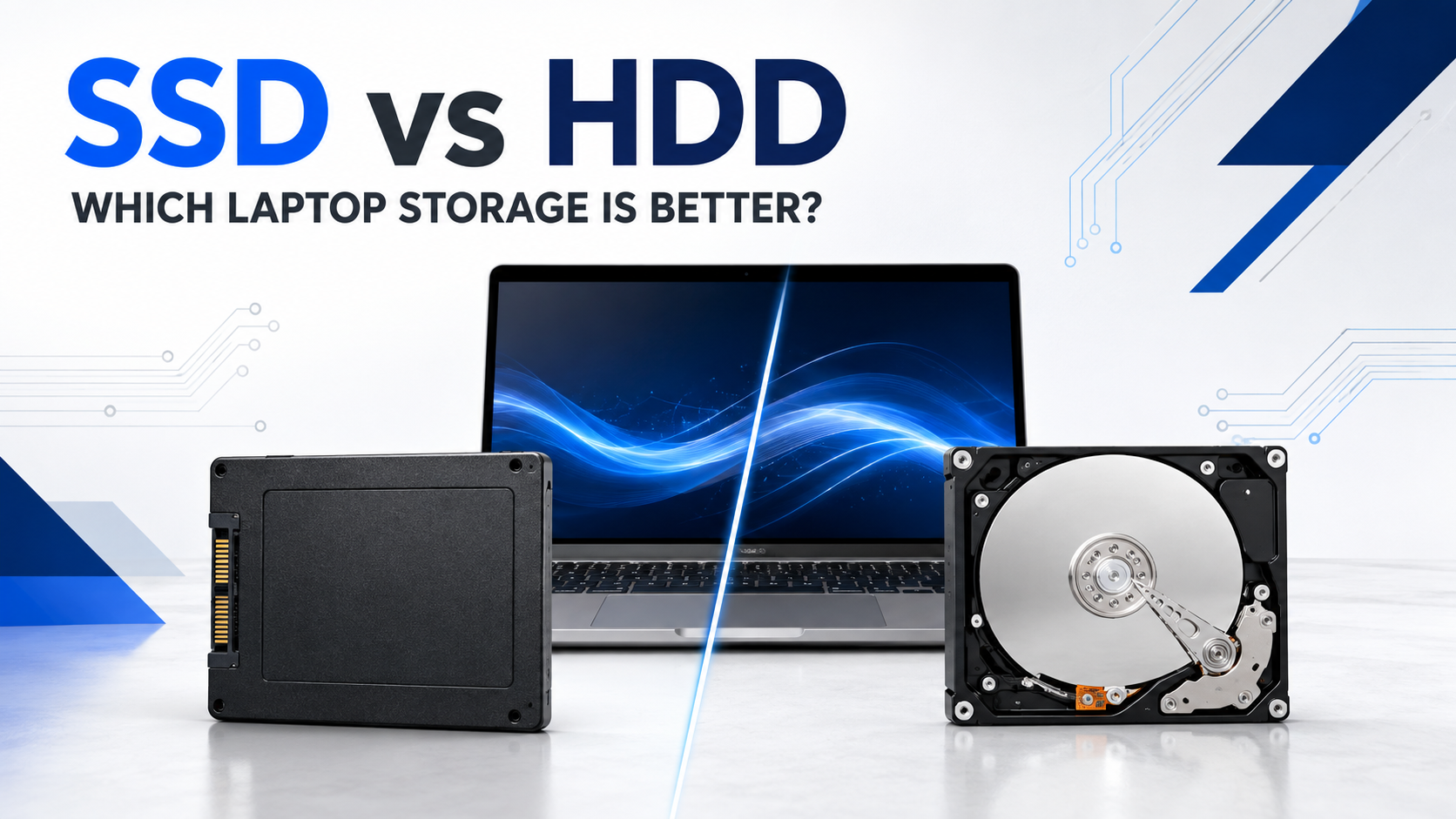
A capable laptop can feel old when Windows and applications are waiting on a slow hard drive. In the SSD vs HDD decision, both technologies store files, but they behave very differently. For most modern laptop users, an SSD gives the biggest improvement in everyday responsiveness.
SSD and HDD in simple terms
| Feature | SSD | HDD |
| Speed | Fast startup, loading and file access | Slower because it uses moving parts |
| Noise and movement | Silent, no moving mechanical parts | May create noise and is more sensitive to impact |
| Best use | Main system drive and active work | Low-cost archives or secondary storage |
| Typical decision | Preferred for laptops | Useful when capacity costs matter most |
How much storage do you need?
- 256GB SSD: suitable for documents, browser-based work and cloud-focused users.
- 512GB SSD: a comfortable choice for general work, programming and moderate creative use.
- 1TB SSD: better for large media, games, design files and professional projects.
- More than 1TB: useful when active media and archives are stored locally, but still keep a separate backup.
SATA SSD or NVMe SSD?
Both are solid-state storage. SATA SSDs are already much faster than mechanical hard drives for normal startup and application use. NVMe SSDs can offer higher transfer speeds and suit large files or demanding work, but the laptop must support the correct interface. For an everyday buyer, capacity and compatibility often matter more than chasing the highest advertised speed.
Laptop examples by storage need
The HP ProBook 650 G8 is an example of a practical 256GB SSD office configuration. The Dell Latitude 7450 offers more comfortable 512GB storage for business use. Users handling larger professional files can compare the 1TB listing of the Dell Precision 5560.
| Note: Always confirm the exact SSD capacity and interface on the live listing. Product configurations and stock may change. |
Avoid these storage mistakes
- Buying an HDD-only laptop as a modern Windows machine without planning an SSD upgrade.
- Choosing 256GB without estimating applications and file sizes.
- Assuming every M.2 drive is NVMe; M.2 describes the shape, not always the interface.
- Keeping the only copy of important files on one internal drive.
- Upgrading without checking the laptop’s supported drive type and size.
Frequently asked questions
Is SSD better than HDD for a laptop?
For the main drive, yes in most cases. An SSD is faster, quieter and better suited to portable use.
Does an SSD make a laptop faster?
It improves startup, application loading and file access. It cannot fix every processor, RAM or graphics limitation.
Is 256GB enough for a student?
It can be enough for documents and cloud storage. Media, engineering software or large projects may need 512GB or more.
Is NVMe better than SATA SSD?
NVMe can provide higher transfer speeds, but compatibility and real workload should guide the choice.
Can I replace an HDD with an SSD?
Often yes, but check the drive size, connector and laptop support before buying an upgrade.
Conclusion
Use an SSD for speed and a separate backup for safety. Estimate the files you will keep, then compare SSD-equipped laptops with enough capacity for your real workload.